How to Join Two Unrelated Zoho Analytics Tables Using Email or Phone Number
Fri Jun 26 2026
Zoho Analytics · Query Tables · Funnels
How to Join Two Unrelated Zoho Analytics Tables Using Email or Phone Number
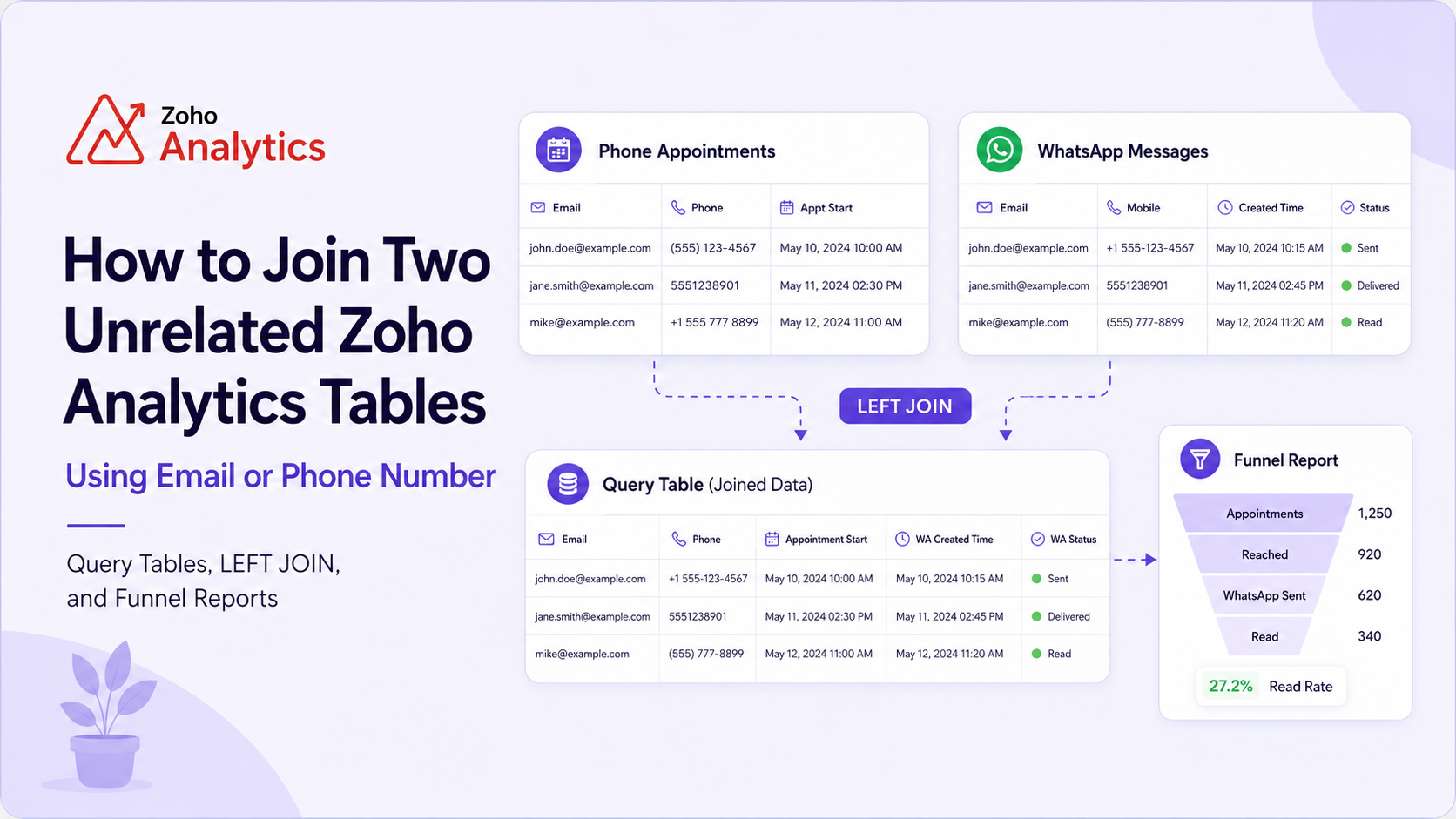
A Query Table can connect Zoho Analytics data that has no lookup relationship. The important part is normalizing emails and phone numbers before you join, then grouping carefully so your funnel numbers stay accurate.
I recently needed to combine two Zoho Analytics tables that had no lookup relationship. One table contained telephone appointments, while the other contained WhatsApp activity. Both tables belonged to the same customers, but the only common fields were email addresses and phone numbers.
A Query Table was the most practical solution.
Why a normal join may not work
The values may look identical to us but still be different to Zoho Analytics.
For example:
customer@example.com
CUSTOMER@EXAMPLE.COM
Phone numbers are even more inconsistent:
+971 50 123 4567
971501234567
+971-50-123-4567
Before joining the tables, we need to normalize these values.
Normalize email addresses
For emails, I use:
LOWER(TRIM(IFNULL("Email", '')))This converts the email to lowercase, removes spaces from the beginning and end, and safely handles null values.
Normalize phone numbers
For phone numbers, I remove common formatting characters:
REPLACE(
    REPLACE(
        REPLACE(
            REPLACE(
                REPLACE(TRIM(IFNULL("Phone", '')), ' ', ''),
                '+',
                ''
            ),
            '-',
            ''
        ),
        '(',
        ''
    ),
    ')',
    ''
)
This converts:
+971 50-123-4567
into:
971501234567
This does not automatically fix country-code differences. For example,
0501234567 and 971501234567 will still be different. Phone numbers should ideally be stored in the same international format in both systems.The Query Table
In this example, the main table is called Phone Appointments, and the second table is called WhatsApp Messages. Replace these names and columns with the exact names from your workspace.
SELECT
    "A"."Appointment ID" AS "Appointment ID",
    "A"."Email" AS "Appointment Email",
    "A"."Phone" AS "Appointment Phone",
    "A"."Appointment Start" AS "Appointment Start",
    "A"."Call Outcome" AS "Call Outcome",

    COUNT(DISTINCT "W"."Message ID") AS "WhatsApp Message Count",
    MIN("W"."Created Time") AS "First WhatsApp Time",

    CASE
        WHEN COUNT(DISTINCT "W"."Message ID") > 0
        THEN 'Matched'
        ELSE 'Not Matched'
    END AS "WhatsApp Match Status",

    MAX(
        CASE
            WHEN LOWER(IFNULL("W"."Status", '')) = 'read'
            THEN 1
            ELSE 0
        END
    ) AS "WhatsApp Read"

FROM
(
    SELECT
        "Appointment ID",
        "Email",
        "Phone",
        "Appointment Start",
        "Call Outcome",

        LOWER(
            TRIM(IFNULL("Email", ''))
        ) AS "Email Normalized",

        REPLACE(
            REPLACE(
                REPLACE(
                    REPLACE(
                        REPLACE(
                            TRIM(IFNULL("Phone", '')),
                            ' ',
                            ''
                        ),
                        '+',
                        ''
                    ),
                    '-',
                    ''
                ),
                '(',
                ''
            ),
            ')',
            ''
        ) AS "Phone Normalized"

    FROM "Phone Appointments"
) "A"

LEFT JOIN
(
    SELECT
        "Message ID",
        "Email",
        "Mobile",
        "Created Time",
        "Status",

        LOWER(
            TRIM(IFNULL("Email", ''))
        ) AS "Email Normalized",

        REPLACE(
            REPLACE(
                REPLACE(
                    REPLACE(
                        REPLACE(
                            TRIM(IFNULL("Mobile", '')),
                            ' ',
                            ''
                        ),
                        '+',
                        ''
                    ),
                    '-',
                    ''
                ),
                '(',
                ''
            ),
            ')',
            ''
        ) AS "Phone Normalized"

    FROM "WhatsApp Messages"
) "W"

ON
(
    "A"."Email Normalized" <> ''
    AND "W"."Email Normalized" <> ''
    AND "A"."Email Normalized" = "W"."Email Normalized"
)
OR
(
    "A"."Phone Normalized" <> ''
    AND "W"."Phone Normalized" <> ''
    AND "A"."Phone Normalized" = "W"."Phone Normalized"
)

GROUP BY
    "A"."Appointment ID",
    "A"."Email",
    "A"."Phone",
    "A"."Appointment Start",
    "A"."Call Outcome"
Why I used a LEFT JOIN
A LEFT JOIN keeps every telephone appointment, even when no WhatsApp record is found. That matters when building a funnel.
If 100 appointments were created but only 70 people received a WhatsApp message, the other 30 appointments must remain in the report. An INNER JOIN would remove them completely and make the conversion numbers misleading.
Preventing empty values from matching
The query includes this condition:
"A"."Email Normalized" <> ''
AND "W"."Email Normalized" <> ''
Without it, one record with no email could match another record that also has no email. Two empty fields do not identify the same customer, so empty values should always be excluded from the match. The same check is applied to phone numbers.
Handling duplicate matches
One customer may have several WhatsApp messages. Without grouping, the result could look like this:
| Appointment ID | Message ID |
|---|---|
| 10001 | MSG-1 |
| 10001 | MSG-2 |
| 10001 | MSG-3 |
If we count these rows directly, it would look like three appointments instead of one.
The query groups the results by Appointment ID and uses:
COUNT(DISTINCT "W"."Message ID")
This gives us one row per appointment while still showing how many WhatsApp messages were found. This is the part that usually causes incorrect dashboard numbers.
Building a funnel report
After saving the Query Table, you can create Aggregate Formulas for each funnel stage. Assuming the Query Table is named Phone and WhatsApp Funnel, the formulas could be:
Total appointments
distinctcount("Phone and WhatsApp Funnel"."Appointment ID")Reached by phone
countif(
    "Phone and WhatsApp Funnel"."Call Outcome" = 'Reached'
)
WhatsApp message found
countif(
    "Phone and WhatsApp Funnel"."WhatsApp Message Count" > 0
)
WhatsApp message read
countif(
    "Phone and WhatsApp Funnel"."WhatsApp Read" = 1
)
You can then add these formulas to a funnel chart in this order:
- Appointments
- Reached by Phone
- WhatsApp Message Found
- WhatsApp Read
Use the exact call outcome and WhatsApp status values stored in your tables. For example, your WhatsApp provider may use Read, read, or another value.
Be careful with shared contact details
Email and phone matching is useful, but it is not as reliable as joining by a unique record ID. Problems can happen when:
- Two contacts use the same company email.
- Family members share a phone number.
- Duplicate CRM records have the same details.
- The email matches one person while the phone matches another.
Where possible, use a CRM Contact ID, Lead ID, Customer ID, or another unique identifier. When no shared ID exists, normalized email and phone matching is a practical alternative, as long as duplicate matches are handled carefully.
Final result
A Query Table allows you to connect data that does not have a lookup relationship. The main steps are simple:
- 1
Normalize the email addresses
Lowercase emails and remove leading or trailing spaces before matching.
- 2
Remove phone-number formatting
Strip spaces, plus signs, hyphens, and brackets so the values can be compared.
- 3
Exclude empty values
Never treat two blank emails or two blank phone numbers as the same customer.
- 4
Use a LEFT JOIN
Keep unmatched appointment records so the funnel does not hide drop-offs.
- 5
Group by a unique ID
Prevent duplicate WhatsApp rows from inflating the appointment count.
This method works well when combining Zoho CRM, Zoho Forms, WhatsApp, telephone systems, and other external data sources inside Zoho Analytics.